



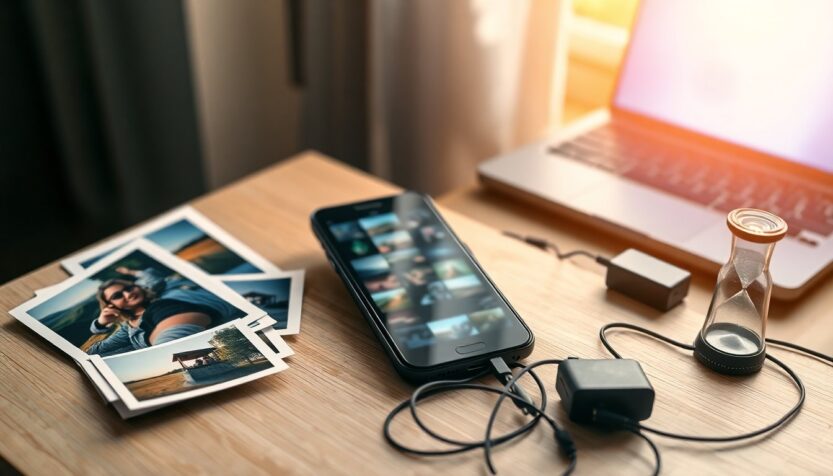
The modern equivalent of clearing out a closet is not a broom or bin, but a few taps inside your pocket. A focused session of digital spring cleaning can free up storage, reduce distractions, and improve device performance. Think of this as an electronic refresh: concentrating on photos, apps, messages, and cloud settings for about thirty minutes can yield immediate benefits without any heavy lifting. In this process, it’s helpful to treat a few terms as tools: the duplicate photo finder, the permission manager, and cloud roles such as owner, editor, and viewer.
Before you dive in, set a simple goal: reclaim space or improve privacy. Having a short checklist keeps you from getting lost in endless scrolling. Whether your phone is an iPhone or an Android, or your files live on a service like Dropbox or Google Photos, a few consistent habits will pay off. Below are practical steps organized by topic so you can hit the highest-impact tasks first and still feel accomplished by the end of a single evening.
Sort photos and screenshots for instant gains
Photos are often the largest and messiest storage culprits. Start by reviewing recent events and selecting the best images, then delete the rest: blurred shots, near-duplicates, and accidental bursts. On iPhone, identical or similar images are grouped into a Duplicates folder you can merge; using the merge tool preserves the highest-quality version and moves extras to Recently Deleted. For many Android devices, the Files by Google app scans for identical files so you can remove duplicates quickly, and some manufacturers like Samsung include similar tools under My Files > Analyze Storage. Creating an album for favorites makes them easier to find and share later.
Screenshots accumulate fast and are usually temporary. Use a screenshot filter in your gallery or search for the Screenshots folder and batch-delete images you no longer need, or move the handful you want to keep into a labeled album. This tidy-up often frees more space than a single large app and reduces visual clutter when you scroll through your camera roll. Remember that deleting from the album may still leave files in a Recently Deleted area until permanently removed, so empty that folder if you need immediate space.
Prune apps and control permissions
Apps are not just storage hogs; they can also drain battery and leak data. Visit Settings > Storage on both iPhone and Android to see which apps consume the most space. A simple rule: if you haven’t opened an app in six months, consider uninstalling it — you can always reinstall later. While you uninstall, review the permissions granted to each remaining app. App permissions act like keys to the drawers of your digital filing cabinet: only open the drawer needed for the task. Restrict location, camera, microphone, and contact access when not required. On Android, the centralized Permission Manager helps you revoke access; on iPhone, check Privacy & Security to adjust settings.
Tidy inboxes, update systems, and manage cloud sharing
Email and system updates are often overlooked. Unsubscribe from newsletters you never read and search for repeat senders to delete historical messages in bulk; this cleans your inbox and speeds searches. Check for pending operating system updates and install them: updates patch security holes and keep apps running smoothly. These housekeeping steps protect your data and help devices behave predictably.
Understand and control cloud sharing roles
When you share files in services like Dropbox, people receive roles that determine what they can do. A single owner controls membership and advanced settings; an editor can add, edit, delete, and share files; and a viewer can view, download, and comment but not change content. On dropbox.com you can manage default sharing behavior (e.g., “anyone with the link” versus “only people invited”) and adjust whether links allow edits or just viewing. To change a person’s access, open the folder’s manage permissions option on web, desktop, or mobile and select Can edit, Can view, or remove them. If you want to prevent editors from inviting others, choose settings that limit membership management to the owner or to team members only.
Permission conflicts occur when someone tries to add a file to a folder they don’t have access to; Dropbox then creates a folder titled [filename] (permission conflicts). The quickest fix is to request edit access from the owner so you can move your file into the original folder and delete the conflict. If you can’t identify the owner, an admin can help. These small steps avoid duplicated content and keep shared folders organized and trustworthy.
Copying and moving photos on Android
On Android, copying a photo is straightforward: open your gallery, long-press the image, choose Copy, then paste into an email, document, or another app that supports image pasting. To duplicate a photo in your gallery, paste it into a different folder or use a file manager to copy and paste. You can also download photos from Google Photos by selecting the image, tapping the options menu, then Download. For transfers to a PC, connect your phone via USB, select File Transfer mode, and drag and drop images. If transfers fail, check storage space, app permissions, or restart the device.
Pick one or two items from this list and do them tonight: clear duplicates, revoke unnecessary permissions, or tidy a shared folder. A brief session of phone cleanup and cloud permission management will leave your devices lighter, faster, and more private — and you won’t need a mop or bucket to feel accomplished.