

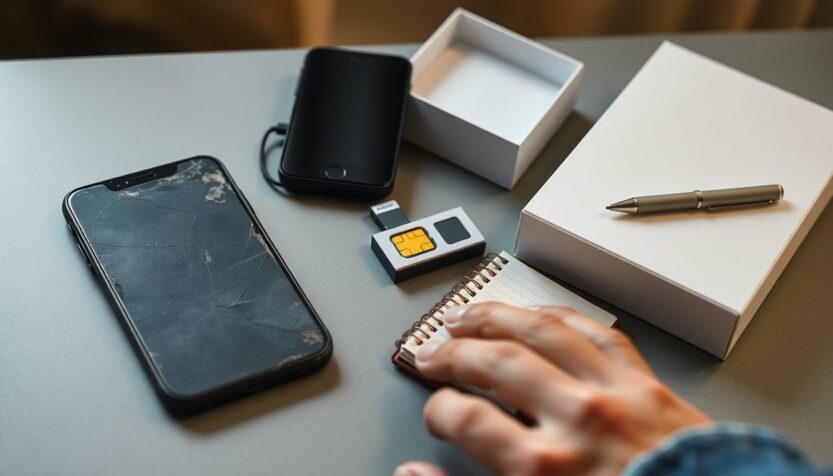
When a long-serving phone finally stops working, the disruption can feel much bigger than the device itself. Beyond the loss of contacts and photos, you lose rhythms: the ringtone that meant a friend was calling, the shortcut that turned on a night light, or the exact place to tap to see a step count. That unfamiliarity is what surprises most people. If you’re replacing a device after many years, it helps to accept the awkwardness up front and focus on a few practical goals: select a device you can manage, secure the essentials, and learn a couple of recovery tricks so interruptions don’t become disasters.
Choose deliberate simplicity
Shopping for a new handset often feels like walking into a gadget carnival: multiple cameras, features you never knew existed, and sales staff eager to demonstrate functions you will never use. A clear strategy can cut through the noise. Decide how much you want to spend, pick an interface that feels intuitive, and favour a phone that offers straightforward basics over novelty bells and whistles. In practice that meant opting for a model that prioritized legibility, battery life, and a small set of core apps. A friendly colour is fine if it makes you smile, but the most important thing is that the device supports your daily routines rather than forces you to relearn them.
Design ideas for real life
When you imagine the ideal device, think of tiny but meaningful fixes. Instead of a complex locator for the handset, a feature like Find my Glasses — a simple tag or reminder to track commonly lost items — would feel more useful. A morning alarm that wakes you with a short story or gentle music rather than an insistent buzz would be kinder. Keep things like hotspot or essential connectivity options easy to toggle so you don’t lose access when you need quick information. The common thread is clarity: a phone that grows with your confidence rather than demanding you become a tech expert overnight.
Protect the items that matter: backups and reminders
Before you part with an old device, make sure your contacts and photos are backed up to a cloud service or a computer. For everyday organization, the built-in Reminders app can help, but accidental deletions happen. On iPhone you can swipe left on a reminder and tap Delete, and if that action was a mistake you can undo it immediately by tapping with three fingers or shaking the device. Open the Recently Deleted list to see items that can be restored. This safety net keeps you from losing essential notes and tasks in a moment of confusion.
Recovering deleted reminders
Items tossed into Recently Deleted are recoverable for a limited time. Tapping an item in that view and choosing Recover will move it back to your default list. If you want to remove something permanently, swipe left in the Recently Deleted view and confirm by tapping Delete again; note that items in that bin are automatically erased after thirty days. These simple steps let you correct mistakes without panicking and preserve important entries while you get used to a new device.
Deal with two-factor authentication and login hiccups
Changing phones often exposes the seams of account security. Two-factor authentication is a crucial layer that asks for a code in addition to your password. If you lose your old phone or change numbers, there are several standard workarounds before contacting support. A saved emergency backup code will get you back in if you stored one when you first enabled extra security. A second phone number, if registered as a backup, can receive codes by text. The service’s desktop or mobile app can send a notification to devices already signed in, and a computer running the desktop app may act as a trusted device so you can regain access and adjust settings.
Troubleshoot invalid or missing codes
If a code is rejected, common causes include using an older code when newer ones were issued, delays between receipt and entry, or your carrier blocking such messages. Authentication apps depend on accurate device time; enable automatic time sync on your phone to avoid mismatched codes. If you receive a code without trying to log in, treat that as a possible sign of unauthorized access and change your account password immediately. If two-factor prompts don’t appear because a device is marked as trusted, you can revoke trusted status from your account’s security settings to restore the prompt on next login.
After a week with a replacement device you may feel like casual acquaintances rather than firm friends — that’s normal. Keep backups current, use the recovery tools in Reminders and account security, and give yourself permission to learn at a gentle pace. Each small success builds practical confidence, and soon the new routines will feel familiar. What features would you add to make phones more human-centered? Share the ideas that helped you move on after a device change.